Collect CSS Revenue

Contents
The Collect CSS Revenue transaction allows for the processing of revenue for miscellaneous type transactions that do not automatically generate a Transaction Details Payment dialog.
To process a Collect CSS Revenue transaction
1.From the main menu bar, select Tools > Revenue > Collect CSS Revenue. The Collect CSS Revenue screen displays.
2.Enter the applicable information.
 When entering an amount in the Miscellaneous Collections Amount/Type field, you must also select a reason from the drop down.
 If selecting the INVOICE NOT POSTED (ZD) reason code from the drop down in the Miscellaneous Collections Amount/Type field and no Miscellaneous Invoice Number has been entered, a message will display to enter the Miscellaneous Invoice Number before the transaction can continue.
3.Click the Process  button. The Transaction Details Payment dialog opens.
4.Enter the payment and click the Process button. See Processing_Payment for more information.
5.The Receipt Details dialog opens. To enter the Receipt Details, click the Manually Edit Name/Address box to open the name and address fields. Enter the Paid by information.
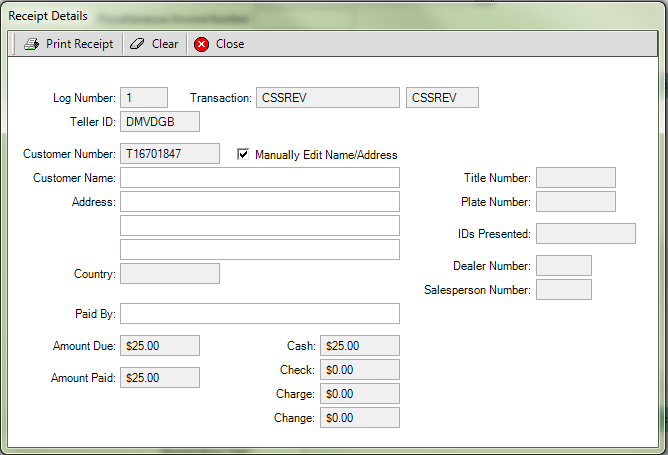 |
| Click to view full size |
6.Click the  button to print the payment receipt if requested. Otherwise, Click the Close
  button to close the Receipt Details dialog.
7.The Transaction Details dialog appears showing the TRANSACTION PROCESSED message.
8.Click the Close button to close the Transaction Details dialog.
9.Click the Close button to complete the transaction.