The Special Customer Number Issue transaction is used to enter a new customer number without providing a social security number or FEIN.
 Before beginning the Issue Special Customer Number transaction, do the following:
| i. | Inquire by name and social security number to be sure a record has not already been established for your customer. |
| ii. | Clear all information from Keys, by clicking the Clear All  button. button. |
To Issue a Special Customer Number
| 1. | In the Direct command field enter SPECUS, then press Enter. A message appears requesting the Customer Number. |
| 2. | Click the OK button. The Issue Special Customer Number form appears. |
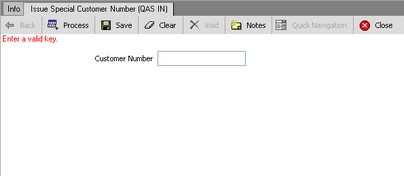
| 3. | In the Customer Number field enter a "T" or "A". |
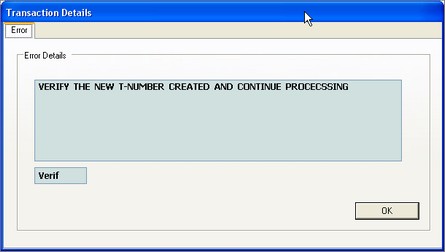
| 4. | Click the Process  button. The new customer number is issued. A message appears stating "VERIFY THE NEW T-NUMBER CREATED AND CONTINUE PROCESSING". button. The new customer number is issued. A message appears stating "VERIFY THE NEW T-NUMBER CREATED AND CONTINUE PROCESSING". |
| 6. | In the Full Legal Name field enter the name using the following format: |
LASTNAME,FIRSTNAME,MIDDLENAME
If the customer does not have a middle name, you must put in the last comma after the first name like this:
LASTNAME,FIRSTNAME,
| 8. | From the Name Type field type I to select Individual. |
| 10. | From the Reason Code field, select ALTERNATE CUSTOMER NUMBER (AC), or whatever is the appropriate reason for your customer's scenario. |
| 11. | In the Transliteration Code area, for each name indicate whether there are special characters in the name by clicking Yes or No. |
| 12. | In the Customer Description area fill in the required information. |
| 14. | In the Primary Mailing Address area fill in the required information. |
| 16. | In the Picture Information area, select Yes next to Send to Camera. |
| 17. | Click the Process button. The customer record is created. |
See Also
Original Title
