Hazmat Background Check Application

Contents
Prior to processing a Hazmat endorsement, a customer must undergo a background check.
To process a Hazmat Background Check application
1.If not already open, Open the Customer Console.
2.In the Direct field, enter HAZBCK, then press the Enter key. The Hazmat Background Check Application transaction form appears.
3.Enter the customer name, address, and employer information in the appropriate sections.
4.Enter the photo document being presented as proof of legal presence.
a.In the Legal Presence section, click the  icon to the right of the Hazmat Photo Document field. The Legal Presence Code Selection dialog appears displaying a list of acceptable documentation.
b.Click the  button next to the documentation type the Customer is presenting. The dialog closes and the Legal Presence code and description appear in the appropriate fields.
 Primary vs. Secondary
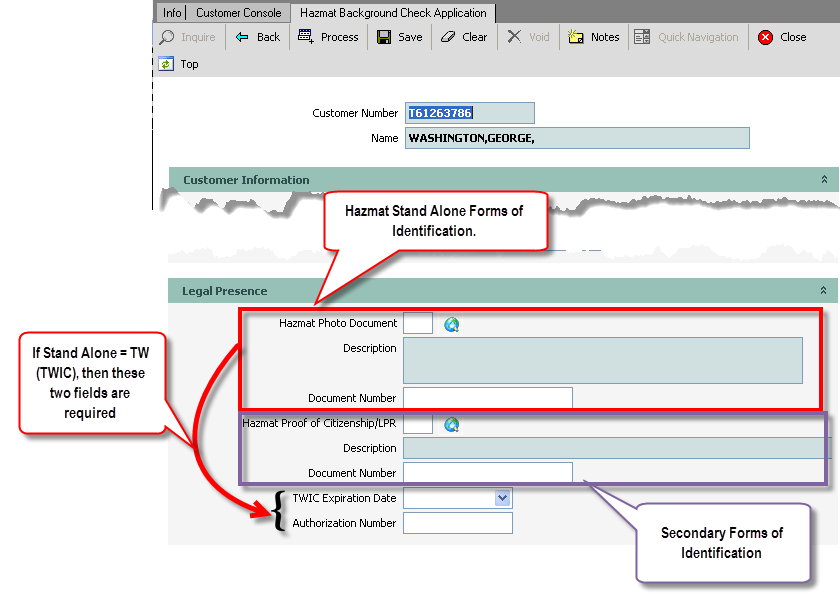
Depending on the primary document entered, you may be required to enter a secondary proof of legal presence.
 |
| Click to view full size image |
Selecting TWIC as the Primary Document
If you select TW for Transportation Worker Identification Credential (TWIC), the TWIC Expiration Date and Authorization Number fields must be filled in.
Note: If the TWIC expiration date is within the current year, a secondary document is required.
7.If a secondary document is required:
a.click the icon to the right of the Hazmat Proof of Citizenship/LPR field. The Legal Presence Code Selection dialog appears again displaying a list of acceptable documentation.
b.Click the button next to the documentation type the Customer is presenting. The dialog closes and the Legal Presence code and description appear in the appropriate fields.
8.Click the Process  button. The transaction is processed.