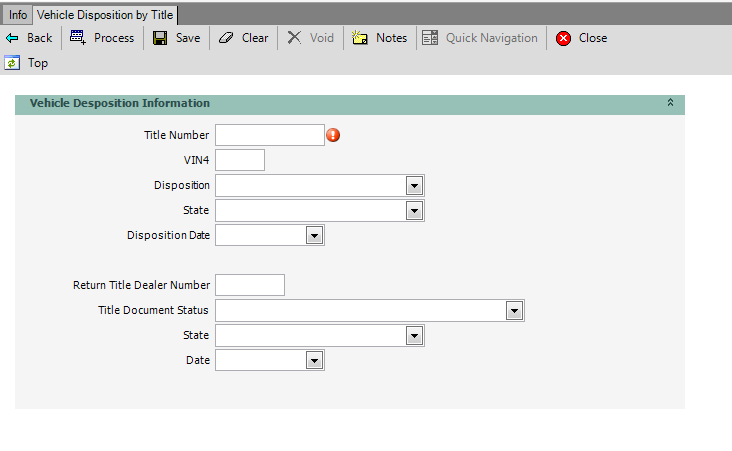
The Vehicle Disposition by Title screen is used to enter vehicle information associated with surrendered vehicles. The information is collected and held until the nightly batch runs and then marks the vehicle record accordingly. This is also known as Vehicle Mass Surrender.
To Process Vehicle Disposition by Title
|
|
|
Transaction Menu
|
| 1. | Click the Transaction Menu button in the Main Menu Bar. |
| 2. | Navigate to Titling Transactions>Maintain Title>Vehicle Disposition by Title(VEHTTL) and click it. The blank Vehicle Disposition by Title form opens. |
| 3. | Continue with the steps below. |
|
Command Line
|
| 3. | Continue with the steps below. |
|
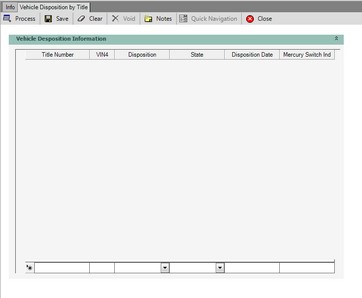
| 1. | At the bottom of the form, in the open fields, key the vehicle Title Number in the Title Number field, then press the Tab key on the keyboard to move to the VIN4 field. |
 |
| Click to view full size |
| 2. | Key the last 4 digits of the VIN in the VIN4 field, then press the Tab key on the keyboard to move to the next field. |
| 3. | Click the  button in the Disposition field to open the list and select the vehicle disposition. Or simply start typing the disposition and the description will appear. Press the Tab key on the keyboard to move to the State field. button in the Disposition field to open the list and select the vehicle disposition. Or simply start typing the disposition and the description will appear. Press the Tab key on the keyboard to move to the State field. |
| 4. | Click the button in the State field to open the list and select the state, US Territory or country. Or simply start typing the name of the state or US territory or country and the name will appear. Press the Tab key on the keyboard to move to the Disposition Date field. |
| 5. | Click the button in the Disposition Date field to open the calendar. Select the disposition date or just type the date into the field. |
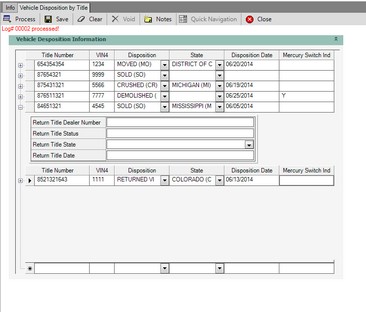
| 6. | If the vehicle disposition is entered as Demolished(DM), enter "Y" in the Mercury Switch Indicator if the Mercury Switch was removed. Enter "N" if the Mercury Switch was not removed or leave the field blank if unknown. |
| 7. | Press the Enter key on the keyboard to add additional information as needed. This will also open the bottom fields to allow for additional entries. Use the  button to the left of the Title Number field to open or close the additional data fields. button to the left of the Title Number field to open or close the additional data fields. |
 If the Disposition and/or State and/or Disposition Date fields are left blank on the next vehicle entry, the nightly batch process will use the what was entered in the Disposition and/or State and/or Disposition Date fields from the previous vehicle record to update that record.
 |
| Click to view full size |
| 8. | Once all vehicles have been entered, click the  button to send the entries to the mainframe file for the nightly batch processing. This is when the vehicles are updated and will reflect the disposition change the next day. After clicking the Process button, the records cannot be changed. button to send the entries to the mainframe file for the nightly batch processing. This is when the vehicles are updated and will reflect the disposition change the next day. After clicking the Process button, the records cannot be changed. |
| 9. | The Transaction Details dialog appears with the Transaction Processed message. |
| 10. | Click the Close  button to close the Transaction Details dialog. button to close the Transaction Details dialog. |
| 11. | Click the Close button to complete the transaction. |